The Open Graph & Twitter Card Preview fetches any URL, reads its og: and twitter: meta tags, and renders the share card the way Facebook, X, and LinkedIn would display it. It also flags any missing tags so you can fix social sharing issues before your content goes live.
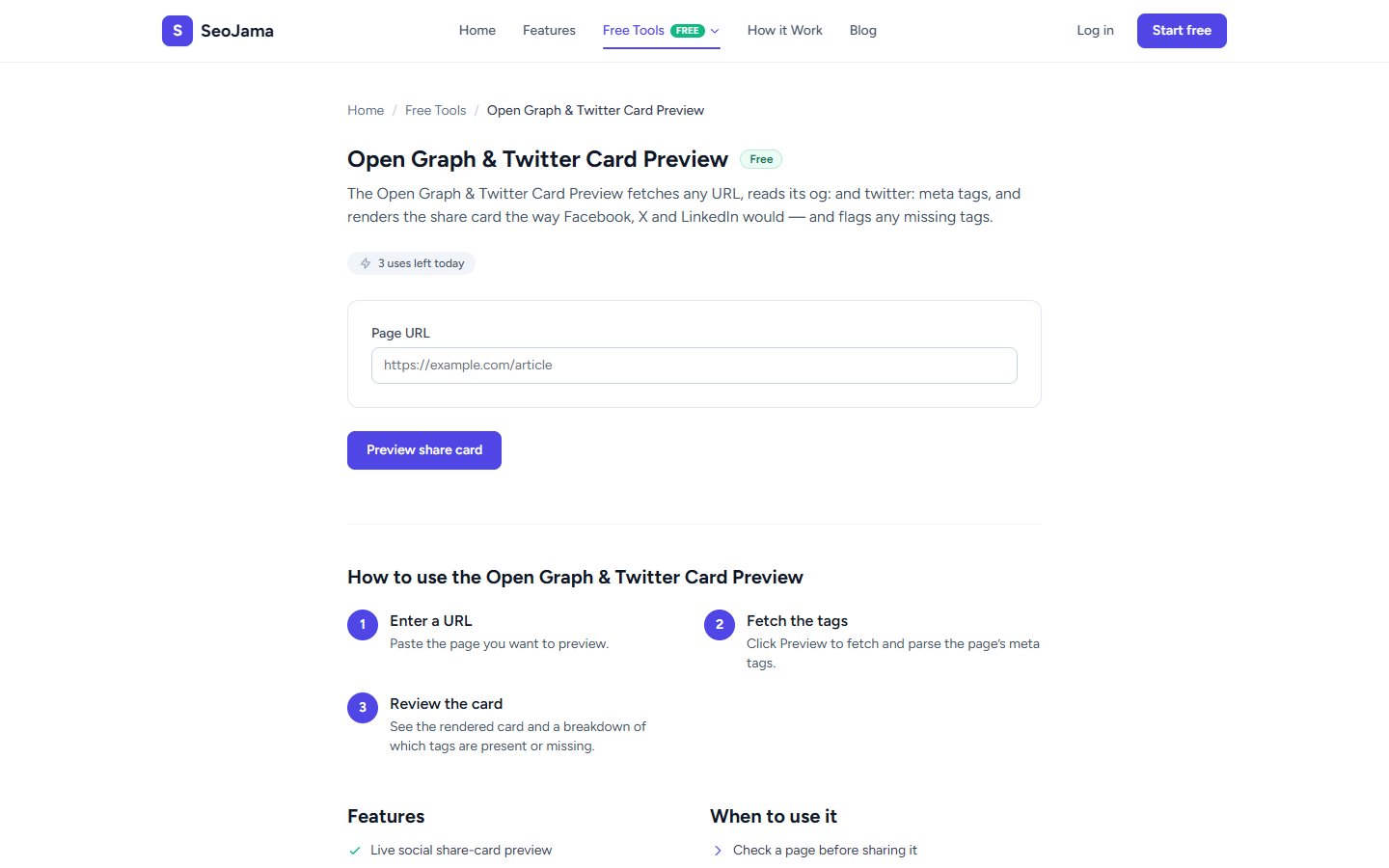
How to use it
- Open the Open Graph & Twitter Card Preview from the Free Tools page.
- Enter the Page URL you want to preview.
- Click Preview share card to fetch and parse the page's meta tags.
- Review the rendered share card on the left and the full list of detected tags on the right.
Understanding the results
The left side shows a visual Share card preview — exactly how your link will appear when shared on social media, including the image, site name, title, and description. The right side lists all Detected tags including og:title, og:description, og:image, og:url, og:type, twitter:card, twitter:title, and twitter:image. Missing or incomplete tags will be flagged so you know what to fix.
Tips for best results
- Always include an og:image tag with dimensions of at least 1200x630 pixels — this is the recommended size for Facebook and LinkedIn and ensures your share card looks professional.
- Make sure your og:title and og:description are different from your regular title and meta description — social platforms have different character limits and display contexts.
- Use
twitter:cardwith a value ofsummary_large_imagefor the most visually impactful display on X (formerly Twitter). - Test your pages after every major content update — cached social previews can show outdated information until the platform re-scrapes your page.